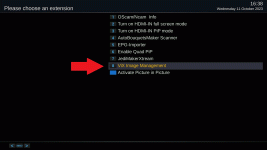
Manually restore settings
This step is for information only, it is not required for most people.
For benefit of people not using Vix or using a very old image of vix (lower than 4.2) you can manually save things and restore them into the newer image.
Code:
def isRestorableSettings(imageversion):
    minimum_version = 4.2
    try:
        imageversion = float(imageversion)
    except:
        return False
    return imageversion >= minimum_version

def isRestorablePlugins(imageversion):
    minimum_version = 4.2
    try:
        imageversion = float(imageversion)
    except:
        return False
    return imageversion >= minimum_version
Code:
https://github.com/OpenViX/vix-core/blob/master/src/BackupManager.py#L72:L86
Details below are for the benefit of those who have images older than 4.2 and are weary over spending "hours and hours" setting up their receiver how they like it or those who want something specific
1. Firstly make an image backup so that you can flash it if things go wrong. Save the image to on your PC or somewhere else safe
Blue > Vix > Image Manager > Green (New Backup)
2. It is handy to make a settings backup too as we can easily extract files from there if we need to.
Blue > Vix > Backup Manager > Green (New Backup)
See this guide if needed
http://www.world-of-satellite.com/showthread.php?47588-Flashing-Settings-backup-and-Restores/
3. Backup your personalised bouquets (skip this if you will be using ABM)
Simplest way is to use settings editors like E-Channelizer, DreamSet, DreamboxEdit
You can also do this manually. The files are located in /etc/enigma2/ Backup the following files
- lamedb
- Everything ending in .tv
- Everything ending in .radio
4. Now backup your timers and autotimers The files are located in /etc/enigma2/ Backup the following files
- timers.xml
- autotimers.xml
5. Backup and then update the settings file. This includes your customisations of many things and tuner configuration.
Note: Some items will still need to be set again. As an example, we use different entries for timezone and terrestrial tuner configs.
The file is called "settings" and also located in /etc/enigma2/
Using a linux compatible editor, like Notepad++ (please don't confuse with windows notepad)!
If your image is older than 4.2
- Change all entries of "true" to "True"
- Change all entries of "false" to "False"
There is a replace function in Notepad++ so this is simple.
6. Backup your cam config files. You should really have these saved anyway.
For mgcamd
newcamd.list in /usr/keys/
cccamd.list in /usr/keys/
mg_cfg in usr/keys
For CCcam
CCcam.cfg in /etc
For Oscam
The oscam files are in /etc/tuxbox/config
7. Backup your softcams. They are located in /usr/softcams/
8. List installed plugins. This is a bit involved. You will only be able to restore the plugins that are on the plugin server. If they are not, you will undoubtedly have the ipks.
Download the attached python script by Huevos, unzip/extract it
Transfer to "pluginslist.py" the /tmp directory of your receiver
Using Putty or your chosen terminal client. Issue the following commands one by one
Code:
cd /tmp
python pluginslist.py
You will then have a file in the /tmp directory. If you do not see it, refresh the view. Transfer the "ExtraInstalledPlugins_YYYY-MM-DD_HH-MM-SS.zip" file to your PC and extract/unzip it.The text file will list items installed by the user. As an example
Code:
dvbsnoop
enigma2-plugin-drivers-dvb-usb-it913x
enigma2-plugin-drivers-exfat
enigma2-plugin-drivers-ntfs-3g
enigma2-plugin-skins-openvix-vixbmc-1080
enigma2-plugin-softcams-oscam-latest
enigma2-plugin-systemplugins-satelliteequipmentcontrol
When you flash your new image, you can re-install them by issuing following commands:
Code:
opkg install dvbsnoop
opkg install enigma2-plugin-drivers-dvb-usb-it913x
opkg install enigma2-plugin-drivers-exfat
opkg install enigma2-plugin-drivers-ntfs-3g
opkg install enigma2-plugin-extensions-autobouquets
opkg install enigma2-plugin-skins-openvix-vixbmc-1080
opkg install enigma2-plugin-softcams-oscam-latest
opkg install enigma2-plugin-systemplugins-satelliteequipmentcontrol
Guide to Putty if you need it
http://www.world-of-satellite.com/showthread.php?40948-How-to-use-Putty-for-Unix-Linux-commands
That should be all the files you need. They are actually in the settings backup file, you can use 7zip to extract it if you want.
You also have an image backup that you can flash back if it goes pear shaped.
9.
Download and then flash the most recent image from openvix.co.uk. It is far easier to use Image Manager to do this. Link to guide further up. Otherwise, USB flashing guides can be found here:
http://www.openvix.co.uk/index.php/guides-and-tutorials/receiver-usb-flashing-guides/
10.
Once you have flashed the image and get to the First Install Wizard (setup screen), don't go any further.
Issue the following command to stop enigma2
11.
Transfer all the relevant files back to receiver
/etc/enigma2
- timers.xml
- autotimers.xml
- settings
- lamedb
- *.tv
- *.radio
/usr/softcams/
- Whatever applies to you.
- You must also chmod 755 the binary files
Do the same for the cam config files, use correct file paths mentioned above
Issue the commands to install your plugins. Examples are above. This will only install plugins that are on the plugin server.
12. Restart the receiver with the following command
Almost everything will be set as it was before. You will have to manually set the odd things that have changed. For example, timezone, tuner configuration for terrestrial/cable
I have not mentioned network mounts etc as the people who do that type of stuff are experts and don't need this guide.
Hopefully that is it. If you get stuck, start a thread. There are lots of people happy to help. Be as descriptive as possible.