


marty
ViX Beta Tester ,
Step 1.
Plug in your WiFi dongle and REBOOT (that's FULL reboot not just an Enigma reboot)
Step 2.
Goto menu/setup/system/network/device setup and you should see a screen like this.

Step 3.
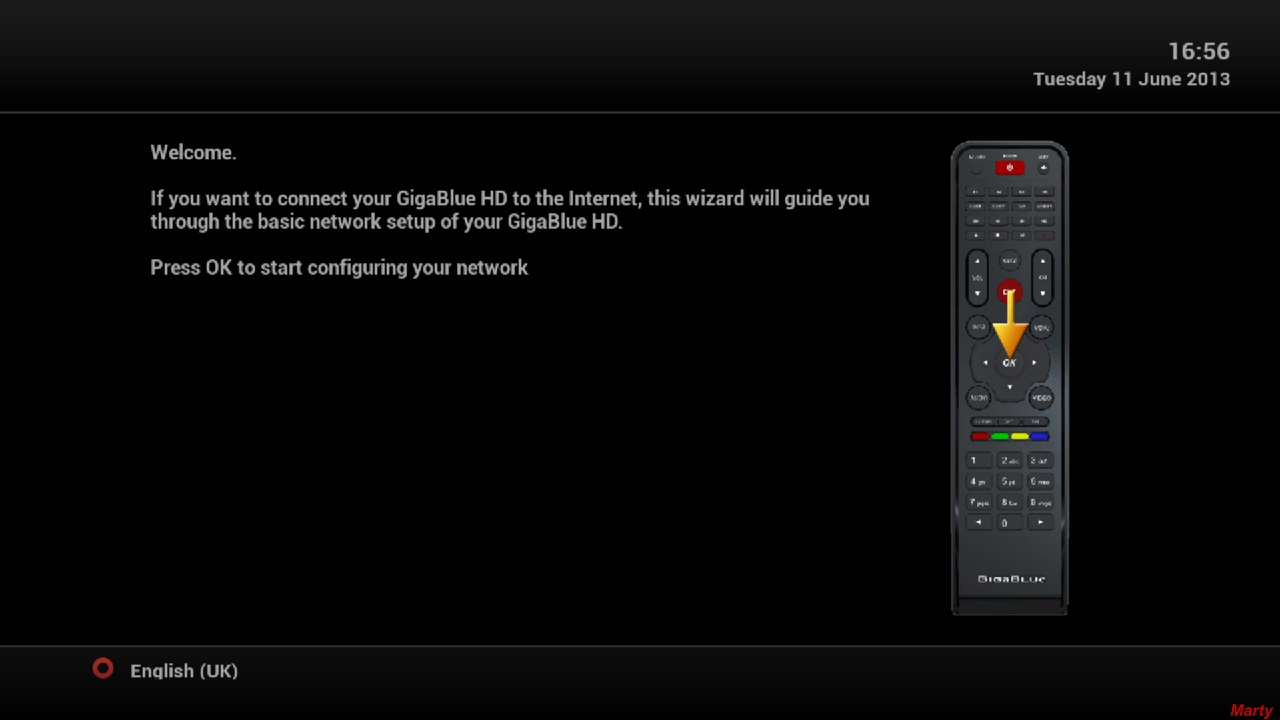
Press the blue button (Network Wizard) and you will see the screenshot below. Then press OK.
Step 4.
Click List available networks.

Step 5.
Choose your network (up/down the OK to select)

Step 5.
You should then see the screen below, press left or right the change "no" to "yes"

Step 6.
Scroll down and enter your encryption type. For me its WPA2, for you it might be something different. You will need to consult your wifi router to find out which type you need (you will also need your routers password/key)
Once you have entered your encryption type go down to enter your encryption key with the buttons on your remote. When done press OK.

Step 7.
Press OK again (yes)

Step 8.
This is to disable the weird (LAN) connection. Press OK again (yes)
You will then wait a 20-30 secs while it activates.

Step 9.
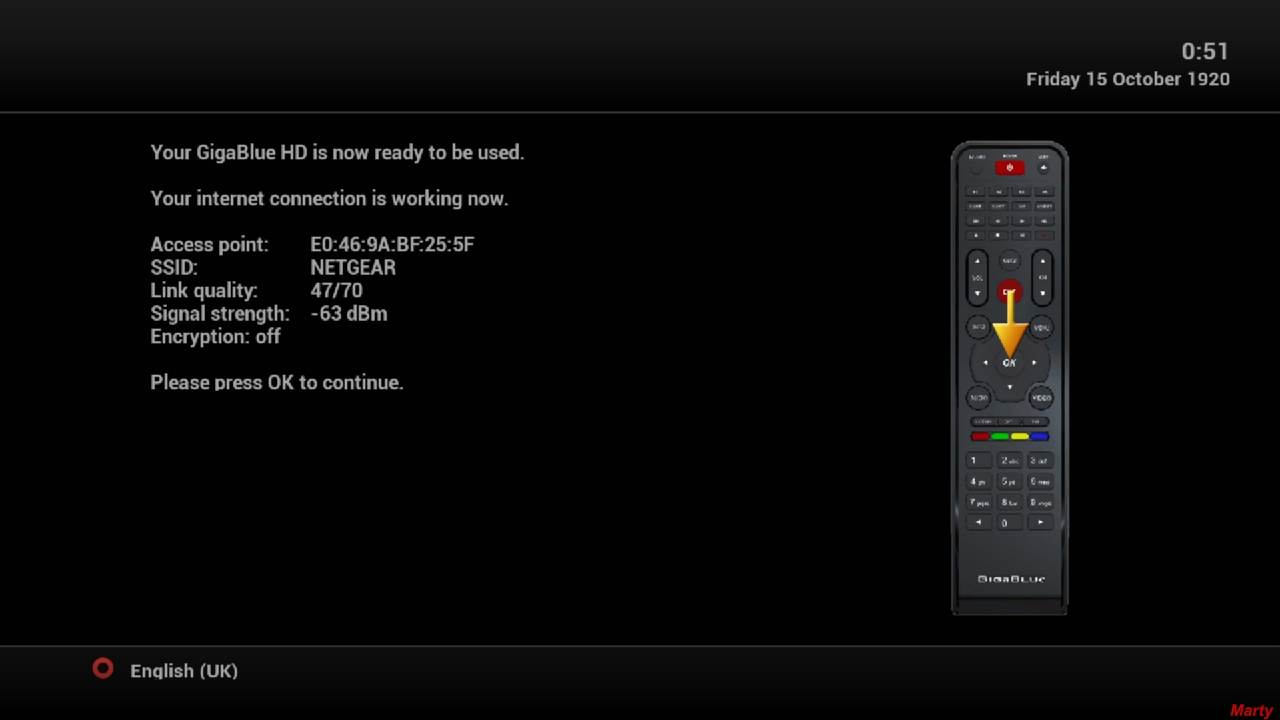
All done Just press OK and all done
Plug in your WiFi dongle and REBOOT (that's FULL reboot not just an Enigma reboot)
Step 2.
Goto menu/setup/system/network/device setup and you should see a screen like this.
Step 3.
Press the blue button (Network Wizard) and you will see the screenshot below. Then press OK.
Step 4.
Click List available networks.
Step 5.
Choose your network (up/down the OK to select)
Step 5.
You should then see the screen below, press left or right the change "no" to "yes"
Step 6.
Scroll down and enter your encryption type. For me its WPA2, for you it might be something different. You will need to consult your wifi router to find out which type you need (you will also need your routers password/key)
Once you have entered your encryption type go down to enter your encryption key with the buttons on your remote. When done press OK.
Step 7.
Press OK again (yes)
Step 8.
This is to disable the weird (LAN) connection. Press OK again (yes)
You will then wait a 20-30 secs while it activates.
Step 9.
All done
Just press OK and all done


